
In this blog, you will quickly learn how to directly establish Firebase phone authentication on Webflow in Cambodia without using any third-party solutions, just with some custom coding. Verification SMS are sent on Firebase's pay-as-you-go (Blaze) plan only, with limits of 900 sent per minute and 3,000 sent per day.
Source: Firebase – Firebase Authentication Limits
Hello, we are neWwave Cambodia, the first No Code Low Code Agency in Cambodia. We're here to bring new innovations, tips, tricks, and insights into the No Code and Low Code space, while striving to become one of the top software development companies in Cambodia.
Before you start
This guide assumes you already have:
- a Firebase project set up, with your website domain authorized
- existing Webflow pages where users enter their phone number and verify it
- access to your site's custom code settings in Webflow
Phone Authentication Setup
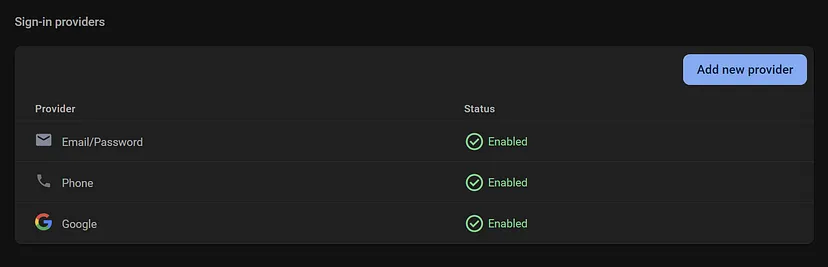
- Go to Firebase, your project, Authentication tab.
- Go to Sign-in method, Add new provider.
- Click on Phone and enable phone authentication.
- Once enabled, you will be able to see that phone is enabled in the Sign-in method tab.
Webflow Setup for the Code
To send the SMS verification message, the user needs a way to enter their phone number and then the OTP code once it arrives, so we need 2 forms.
Form 1: phone number
- Create one form with an input field, a button, and an empty div block for the phone input.
- Make sure it's a button and not a form button.
- Name all 3 elements in the Id field so that the code knows which elements we are referring to.
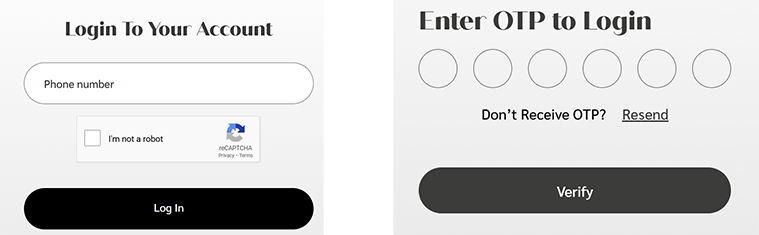
- Important! The empty div block is where the reCAPTCHA renders from the code, to keep out bots and spam. In the Webflow preview you won't see the reCAPTCHA, but it will render once you view your website. You don't need to enable reCAPTCHA in Webflow.
Form 2: verification code
- Create another form with an input field and a button.
- Again, make sure it's a button and not a form button.
The Id names used in this guide:
- Phone number input field: input_phone_number
- Send button: send_otp_button
- Empty div block for the reCAPTCHA: recaptcha-container-1
- OTP input field: input_otp
- Verify button: verify_otp_button
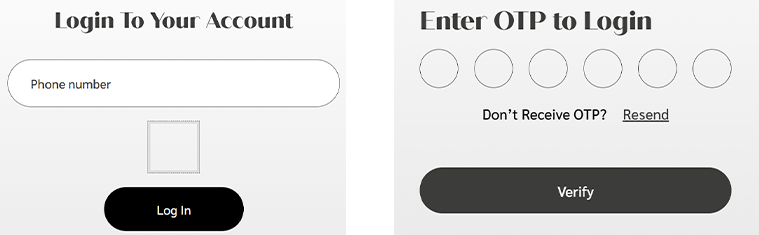
The Id name for the elements can be changed according to your specific use case, but for the purpose of this blog, we will refer to these Id names in our code.
Note: The image below is when the recaptcha has been rendered in the website.
Placing the code in Webflow
Once our pages have been set up, we can begin implementing the code. This is the complete code to be placed in the website custom code setting in Webflow. Please read each line of the code carefully, as there is information you need to fill in for your specific website and Firebase project:
- your Firebase configuration
- the URLs of your phone number input page, verification page, and homepage
After filling in all the information, place the code in Webflow under your website, Settings, Custom Code, and paste it into the head code field.
<script type="module"> // Import Firebase modules import { initializeApp } from "https://www.gstatic.com/firebasejs/9.17.1/firebase-app.js"; import { getAuth, RecaptchaVerifier, signInWithPhoneNumber, PhoneAuthProvider, signInWithCredential } from "https://www.gstatic.com/firebasejs/9.17.1/firebase-auth.js"; // Firebase configuration (fill in your project details) const firebaseConfig = { apiKey: "...", authDomain: "...", projectId: "...", storageBucket: "...", messagingSenderId: "...", appId: "...", measurementId: "..." }; // Initialize Firebase const app = initializeApp(firebaseConfig); const auth = getAuth(app); document.addEventListener("DOMContentLoaded", () => { const currentUrl = window.location.href; // --- Send OTP Flow --- if (currentUrl.includes("https://place_holder/input_phone_number")) { const sendButton = document.getElementById("send_otp_button"); const phoneInput = document.getElementById("input_phone_number"); if (!sendButton || !phoneInput) return; window.recaptchaVerifier = new RecaptchaVerifier( "recaptcha-container-1", { size: "normal", callback: (response) => { sendButton.disabled = false; }, "expired-callback": () => { sendButton.disabled = true; } }, auth ); window.recaptchaVerifier.render().then(() => { sendButton.disabled = false; }); sendButton.addEventListener("click", async () => { const phoneNumberInput = phoneInput.value.trim(); if (!/^\+\d{1,3}\d{10}$/.test(phoneNumberInput)) { alert("Invalid phone number format."); return; } try { const appVerifier = window.recaptchaVerifier; const confirmationResult = await signInWithPhoneNumber(auth, phoneNumberInput, appVerifier); sessionStorage.setItem("verificationId", confirmationResult.verificationId); alert("SMS sent successfully! Check your phone."); window.location.href = "https://place_holder/verification"; } catch (error) { alert("Failed to send SMS."); } }); } // --- Verify OTP Flow --- if (currentUrl.includes("https://place_holder/verification")) { const verifyButton = document.getElementById("verify_otp_button"); const otpFields = document.getElementById("input_otp"); const verificationId = sessionStorage.getItem("verificationId"); if (!verificationId) return; verifyButton.addEventListener("click", async () => { const code = otpFields.value.trim(); if (code.length !== 6 || !/^\d{6}$/.test(code)) { alert("Please enter a valid 6-digit OTP."); return; } try { const credential = PhoneAuthProvider.credential(verificationId, code); await signInWithCredential(auth, credential); alert("Phone number verified successfully!"); window.location.href = "https://place_holder/"; } catch (error) { alert("Error verifying code: " + error.message); } }); } }); </script> Understanding the code in a nutshell
This script implements phone number authentication using Firebase's Authentication service, following the same pattern as the official Firebase guide to phone sign-in on the web. It begins by initializing Firebase with the project's configuration, enabling the use of Firebase modules like authentication. The code supports two main functionalities:
- Sending the OTP (One-Time Password): when users open the phone number page, the script initializes a reCAPTCHA verifier to ensure secure user interactions. On a click of the "Send OTP" button, the phone number is validated and, if valid, an OTP is sent with Firebase's signInWithPhoneNumber method. The verification ID is stored in session storage for later use.
- Verifying the OTP: on the verification page, the code retrieves the verification ID and listens for the "Verify OTP" button click. The entered code must be 6 digits; if it is, it is combined with the stored verification ID into a credential via PhoneAuthProvider, and the credential is used to authenticate the user with Firebase.
Throughout the process, the script includes error handling and gives feedback through alerts.
What does this code do, and what is left to you?
After this, all you need to do is publish your website, and you're done. This code only verifies the number and lets users continue to the next link once they are verified. If you want to use it to sign up or sign in users, you will need to build that integration yourself.
If you have any questions or issues with this code, feel free to contact us!